BOOTABLE USB CREATOR / WINDOWS

One USB.
A fresh start.

From an ISO file to bootable media. Prepare a Windows installation, run Linux, or give your device a new start—with control still in your hands.

Version 1.0.1 · Windows x64 · No installer

DEVELOPED BY
SHANNA Digital Systems
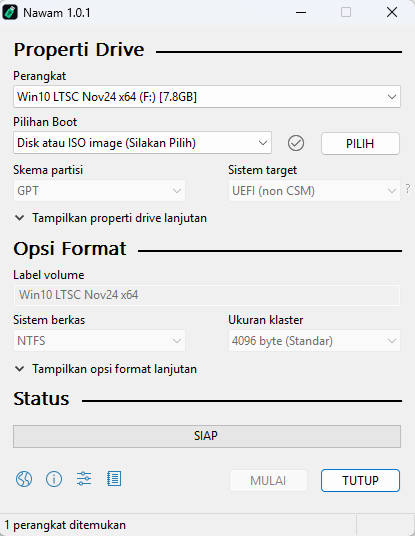
Actual Nawam screenshot
Actual Nawam application running on Windows, original image supplied by the application owner. Indonesian UI.
ISO → USB A focused workflowGPT / MBR Choose a partition schemeUEFI / BIOS Image & device dependentGPL v3+ Free & open source

01 / CONTROL, WITHOUT COMPLEXITY

What you need.
No added complexity.

Choose an image, select a device, then review the settings. Nawam keeps the compact workflow of a Windows utility, with the information you need before you start.

SOURCE → DESTINATION

One workflow.
Different needs.

A Windows ISO for a fresh installation. A Linux ISO for installation or a live environment. Boot options depend on the image contents, not just the file extension.

Understand compatibility
.isoUSB
01 Identify your device
Check the USB drive name and capacity before choosing a target. Additional USB hard drives are not shown by default.
02 Relevant settings
GPT or MBR, UEFI or BIOS, filesystem, cluster size, and volume label in one window.
03 Visible progress
Monitor progress and status. Open the log for image detection, device information, and operation details.
04 Portable when needed
Run a single executable. Place nawam.ini beside it to store preferences in portable mode.

PREPARE FOR YOUR NEXT STEP

The right media.
For your purpose.

INSTALLATION MEDIA

Start with a fresh installation.

Use a Windows ISO from an official source to prepare an installation USB. Choose a boot target that matches the destination computer's firmware.

  • Windows images are scanned before use
  • GPT for compatible UEFI devices
  • Options depend on the Windows version and image contents

02 / FROM ISO TO USB

Four steps.
One clear destination.

Prepare a trusted ISO file and a USB with enough capacity. Back up the USB data before continuing.

  1. 01

    Connect your USB

    Run Nawam, then check the device name and capacity. Do not choose a drive based only on its letter.

  2. 02

    Choose an ISO file

    Click SELECT, locate your Windows or Linux image, then wait for the image scan to finish.

  3. 03

    Review the settings

    Make sure the partition scheme, target system, and filesystem suit the destination computer. Keep the defaults if they already match.

  4. 04

    Start & wait

    Click START only when you are sure. Read the erase confirmation and wait for completion before removing the USB.

03 / KNOW YOUR CONFIGURATION

Compatibility is
about the right match.

The image, destination computer's firmware, and USB device determine which options are available. Not every combination works with every ISO.

Nawam runs on Windows. Creating Linux media does not mean Nawam runs directly on Linux or macOS.

Nawam 1.0.1 compatibility
Host systemTest target: Windows 11 x64
Windows 10 x64: supported by the source base, but has not been tested with this build.
Download architecturex64 (64-bit)
x86 and ARM64 downloads are not provided yet.
Image sourcesWindows installation ISOs and bootable Linux ISOs
Partition schemeGPT / MBR
Boot modeUEFI / Legacy BIOS
Depends on firmware and the ISO's bootloader.
FilesystemFAT/FAT32, NTFS, exFAT, UDF, and other available options
Depends on drive size, OS, and image requirements.
PermissionsAdministrator access is required to access disk devices
Internet connectionLocal ISOs can be used without downloading the ISO again.
Some images require additional boot components.

04 / NAWAM FOR WINDOWS

Prepare your
next USB.

One application file. No installer.
Download, check, then run.

License & source code
EARLY RELEASEv1.0.1

Nawam for Windows x64

Early build • 64-bit • .exe

Download Nawam for Windows

This build is not digitally signed (code-signing). Windows may display “Unknown publisher”. Check the download source and checksum before running it.

SHA-256The checksum is included with the release package.

Test status: x64 build and non-destructive checks. Automated physical USB write testing has not been performed; always back up your data.

DEVELOPMENT NOTES

Nawam's
first steps.

1.0.1

Identity update
  • Application publisher: Shanna Studio. About is simplified to copyright and the custom website nawam.shanna.id.
  • Nawam identity and a Fresh Mint USB vector icon.
  • ISO-based bootable USB creation and disk settings from the underlying open-source implementation.
  • Separate nawam.ini configuration, log, and preference storage.
  • A Windows x64 build with executable metadata and hardening checks.

Automatic updates are not available yet. New versions must be downloaded manually from this page. This list does not claim that every image and device has been tested.

BEFORE YOU BEGIN

Frequently asked
questions.

No need to guess before working with important data.

Is Nawam free?

Yes. Nawam is free software under GPL version 3 or later. See the license and attribution for details about the source base and third-party components.

Will files on my USB be erased?

Yes. Formatting and creating bootable media can erase all data on the target device. Back up first, verify the drive name and capacity, then read every confirmation.

Should I choose GPT or MBR?

GPT is commonly used for modern UEFI systems, while MBR is used on many Legacy BIOS systems. Follow your firmware and image requirements. Do not switch modes just because one seems newer.

Can every ISO be made bootable?

No. The ISO must have a supported boot method. Renaming a file to .iso does not make it bootable. Use images from official sources and check the checksum supplied by their creators.

Why does Nawam need Administrator access?

Nawam needs low-level access to manage USB partitions and filesystems. This permission does not automatically make every action safe—you still need to check the selected drive.

How do I use portable mode?

Place an empty file named nawam.ini in the same directory as Nawam.exe. Preferences are then saved in that directory. Choose a location you can write to.

Why is the START button disabled?

Check that the USB device is detected, an image is selected and fully scanned, and the settings are appropriate. The application log can help explain problems without repeated attempts to format.

Why does Windows show Unknown publisher?

The early build does not have an Authenticode signature. SHANNA Digital Systems metadata is not a digital certificate. Download only from sources you trust and compare the SHA-256 checksum. Do not disable Windows protection globally.

Are automatic updates available?

Not yet. Nawam does not offer another application's executable as an update. Until a dedicated Nawam update system is available, use the manual download on this page.

How do I report a problem?

Save the application log, Nawam version, Windows version, and details of the ISO used. Do not include personal data or drive contents. Developer information is available through the SHANNA website.
BUILT BY SHANNA DIGITAL SYSTEMS

Start with media
you prepared yourself.

Get Nawam